Asset Manager

The EON Asset Manager is a centralized system for managing a traceable object's assets (PDFs, images, videos, etc) and for enabling structured, secure, and dynamic workflow automation around asset-related business processes across the end-to-end product lifecycle — from supply chain and commerce to after-sales and beyond.

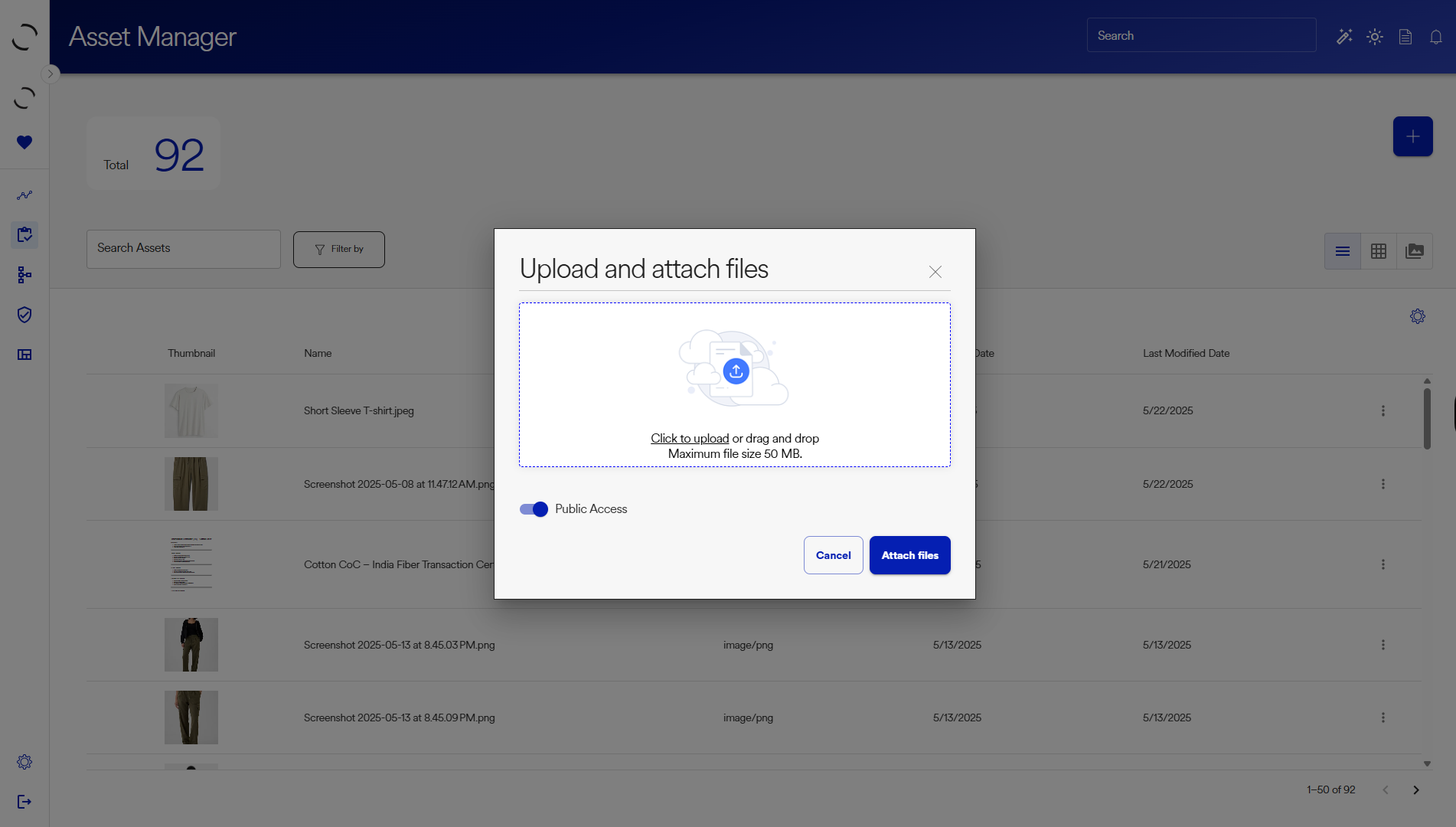
Asset Manager List View
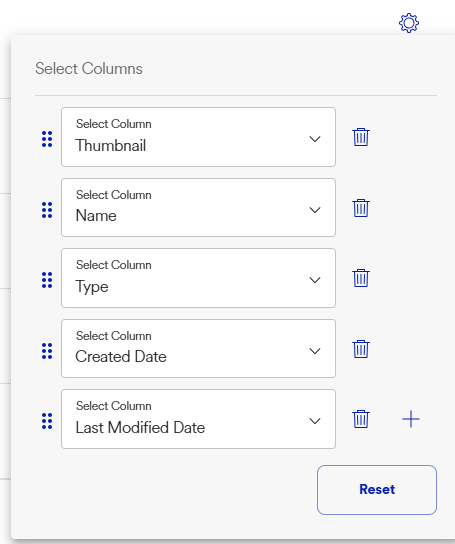
The Asset Manager List UI is the core working area where users can browse, search, upload, and interact with all uploaded documents. It supports multiple view modes, including large thumbnail previews and compact list views, allowing teams to customize the layout for visual workflows or high-volume document management. With configurable columns, advanced filters, and real-time search, this interface makes it easy to locate, review, and organize assets at scale.
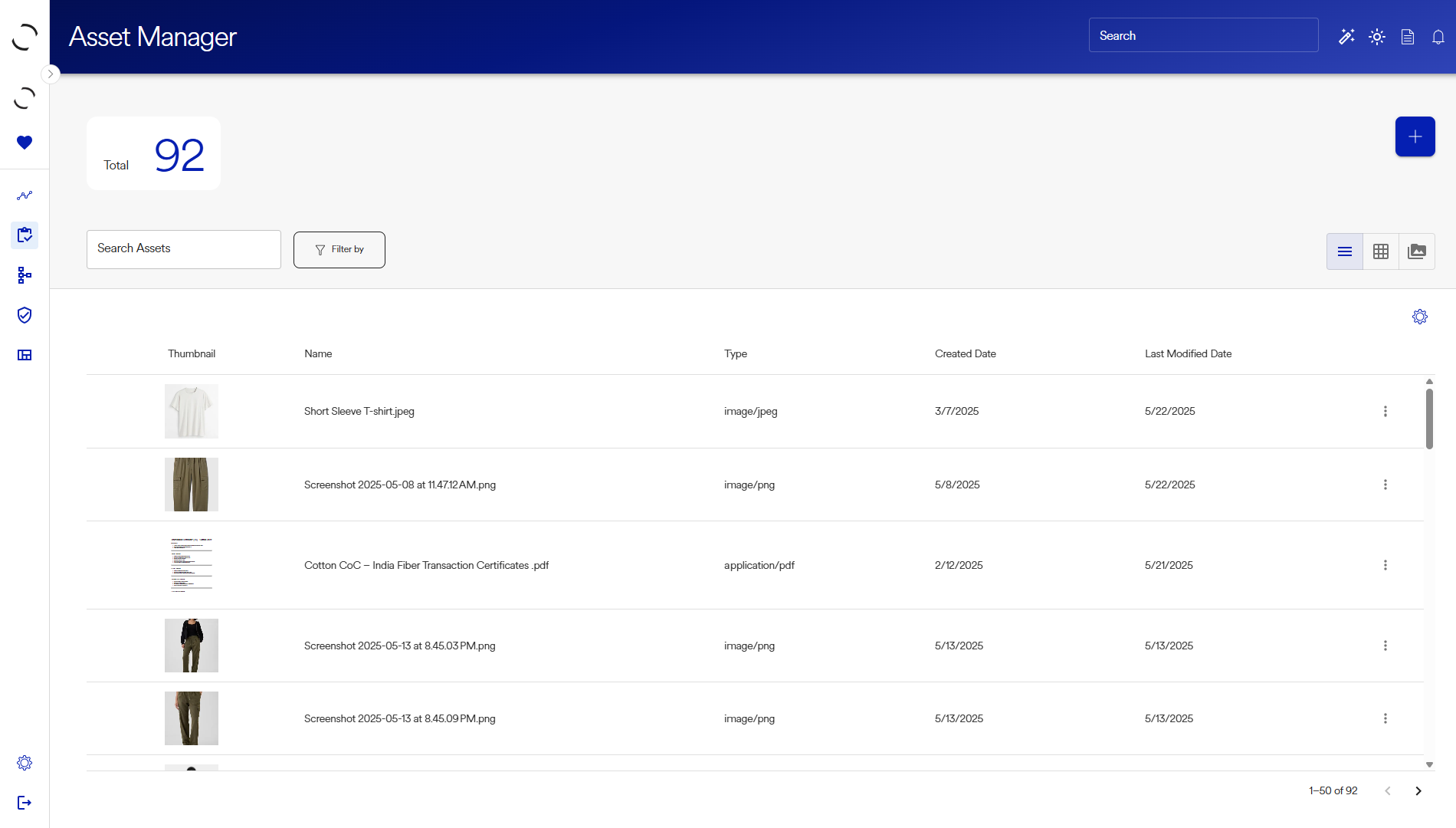
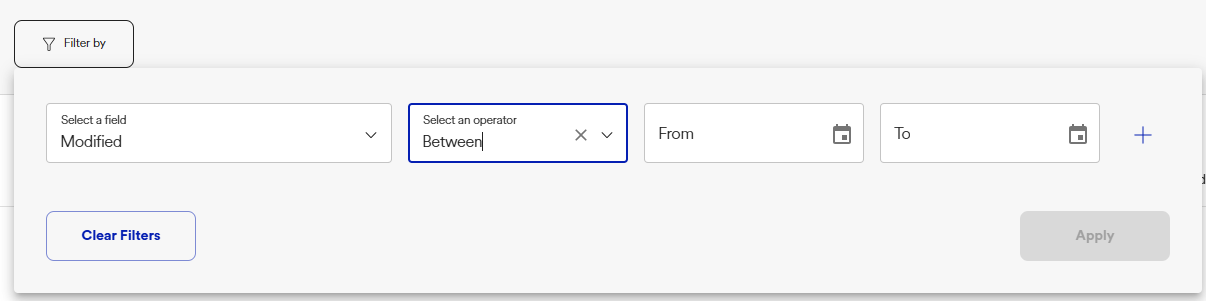
Now You Try:
- Type a keyword into the search bar
- Apply filters ("File Type = PDF" or "Modified After: 01/01/2024")
- Note changes in results in real time
- Use the lock icon or label to identify access status
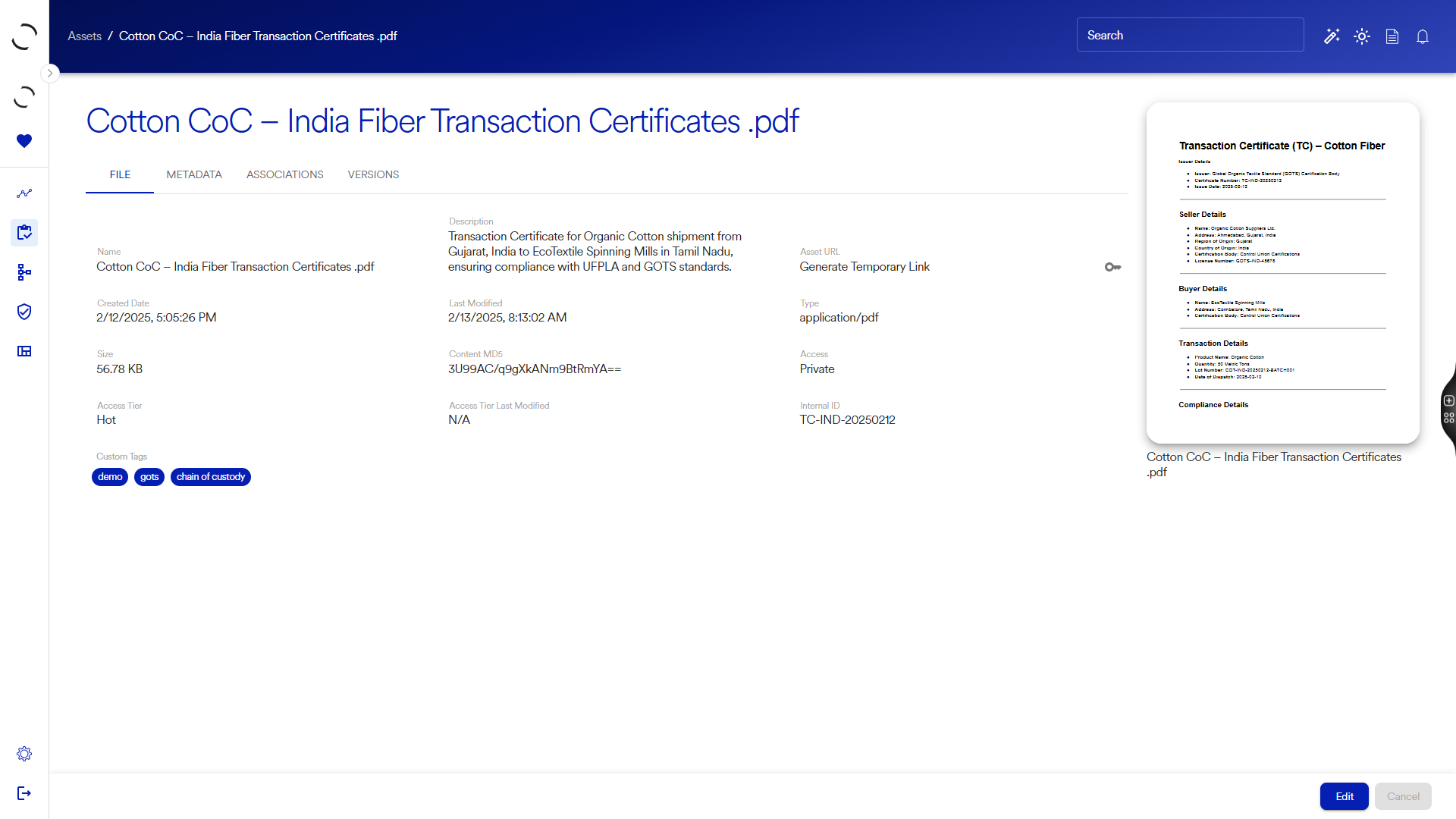
The File tab provides a high-level overview of the asset's basic properties. For most asset types clicking the large thumbnail preview will open a full page view so users can view the asset in its original form without downloading it. This is especially helpful for quick reviews or audits.
Name and Type of the file
Created Date and Last Modified timestamp
Access and Access Tier (Private, Public, Hot, Cold)
Tags makes your assets easily searchable and actionable.
Generate Temporary Link: If the asset is marked Private, users can click the key icon to create a secure, time-limited share link that expires after 1 hour.
JSON View
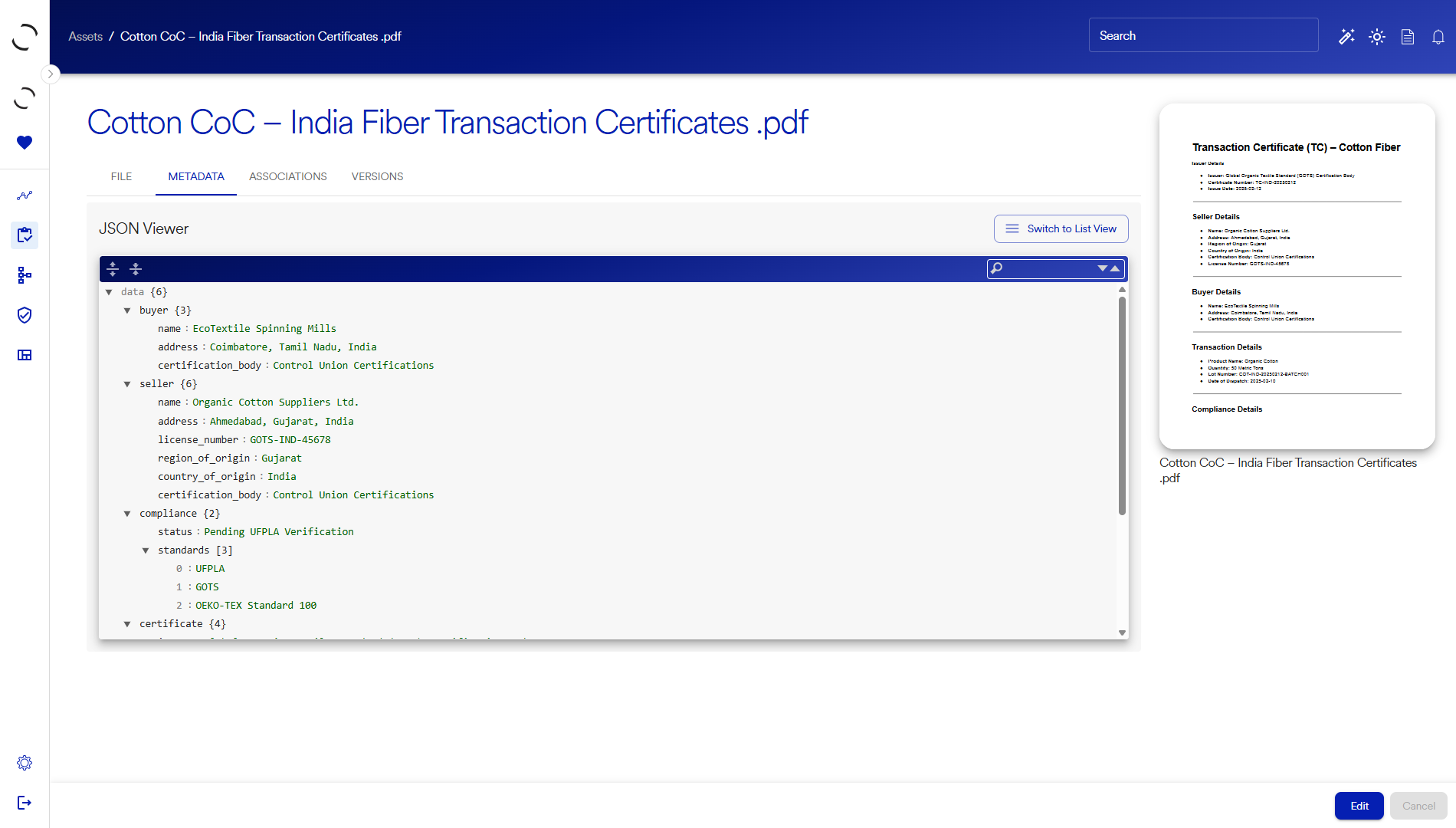
- Expand All (icon) — opens all metadata blocks
- Collapse All (icon) — folds all nested fields for quick overview
- Search and Edit enabled
List View
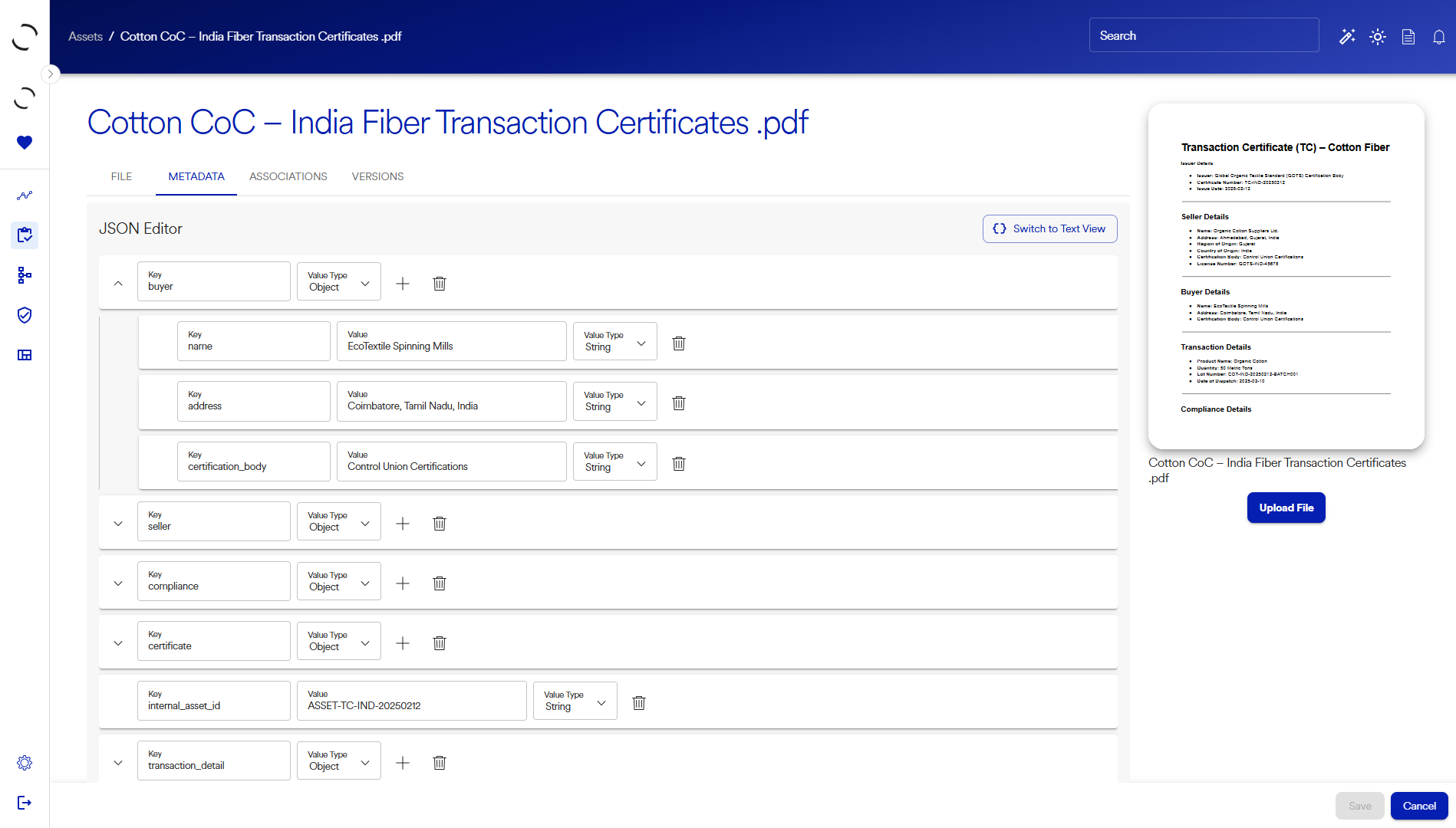
- Click “Switch to List View” to enter structured editor
- Add or delete top-level fields and nested values
- Edit keys, value types, and values directly
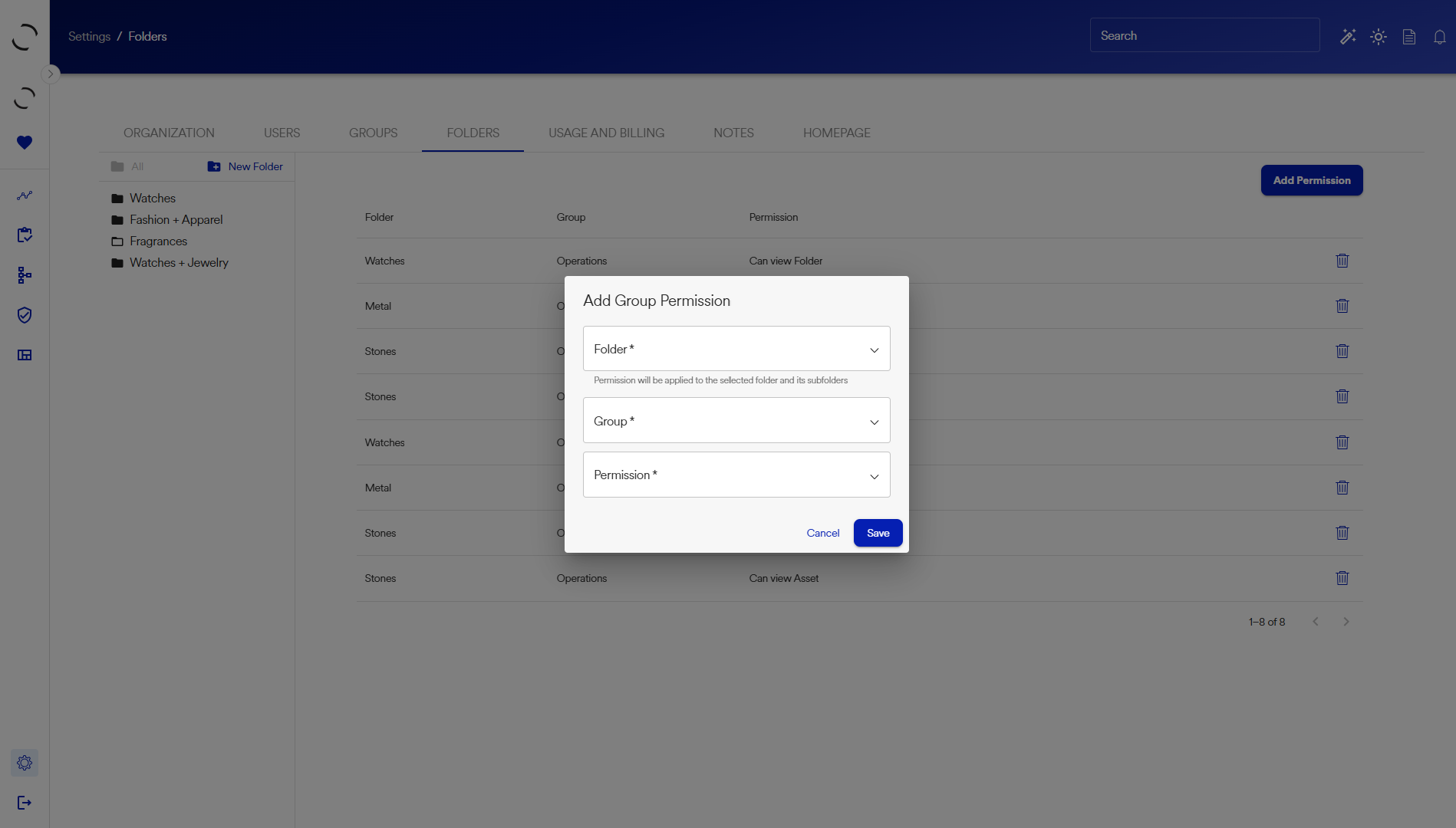
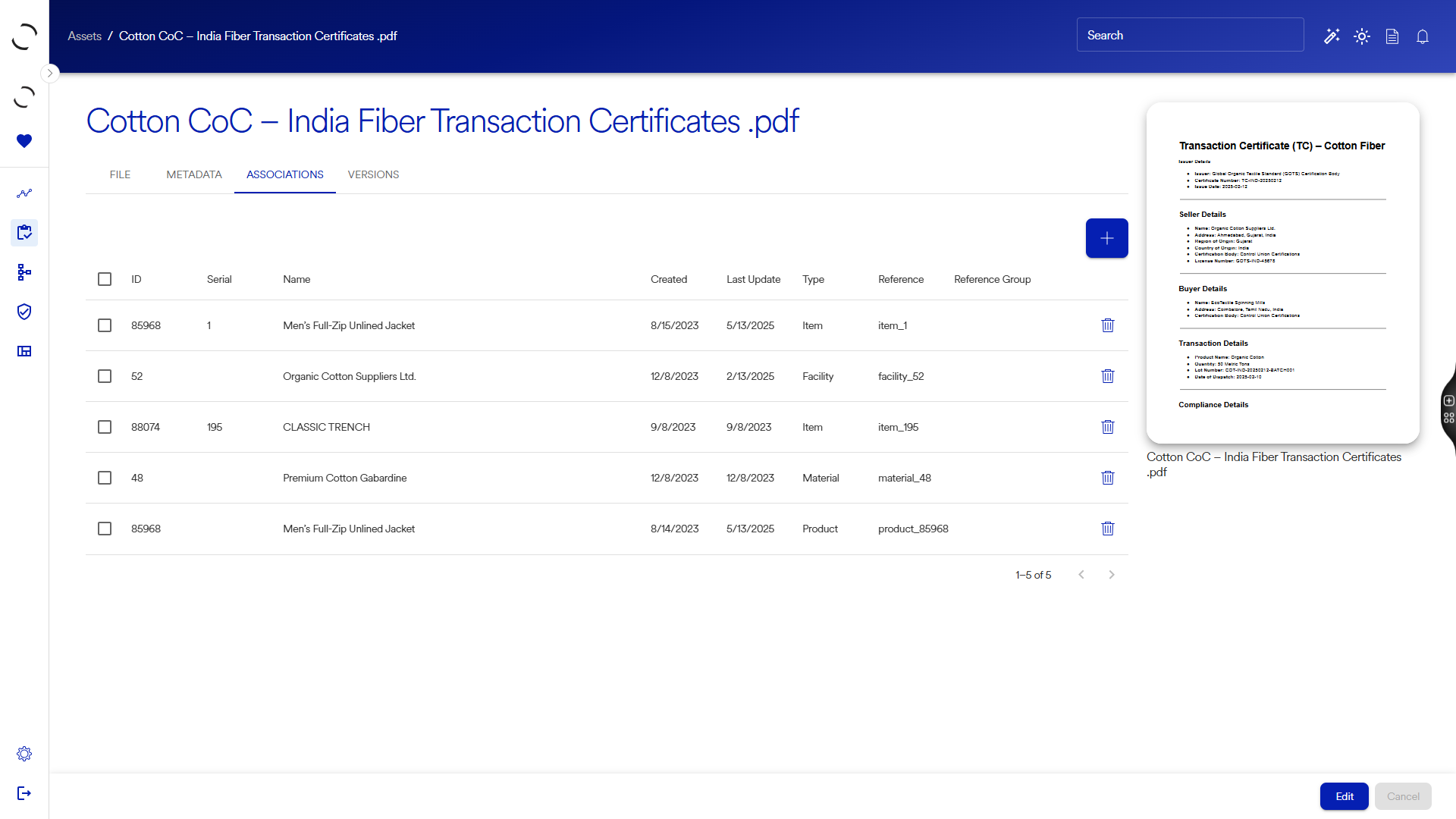
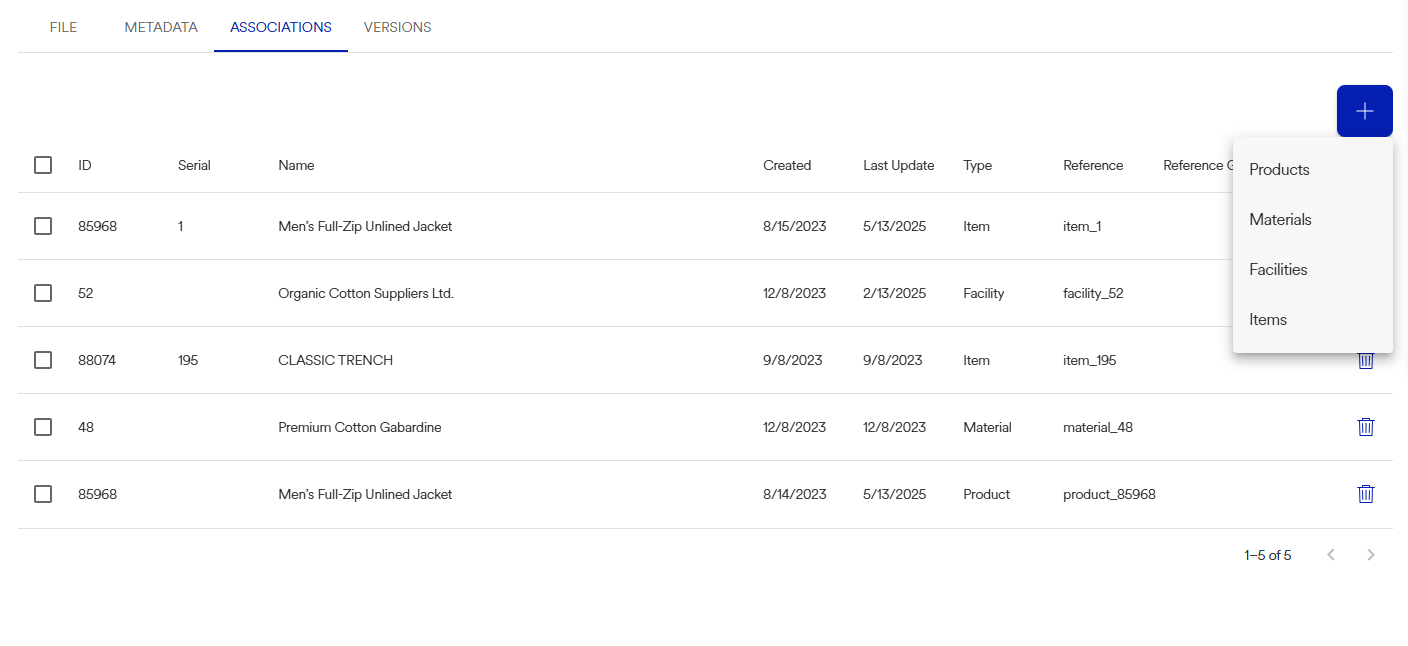
The Associations tab allows users to connect an asset with related objects across the platform, such as products, materials, facilities, or specific serialized items. These relationships are essential for traceability and regulatory reporting, helping ensure documents are discoverable when reviewing product records or audits.
The Versions tab allows you to track every upload, edit, or update.
Full document version history
Restore or compare older versions
.png)
Example Use Case Scenarios
The Asset Manager plays a critical role in solving real-world regulatory and compliance challenges. Below are three use cases that highlight how documentation linked through Asset Manager is used across the platform, especially in combination with tools like Policy Manager.
Customs Scrutiny on Product Material
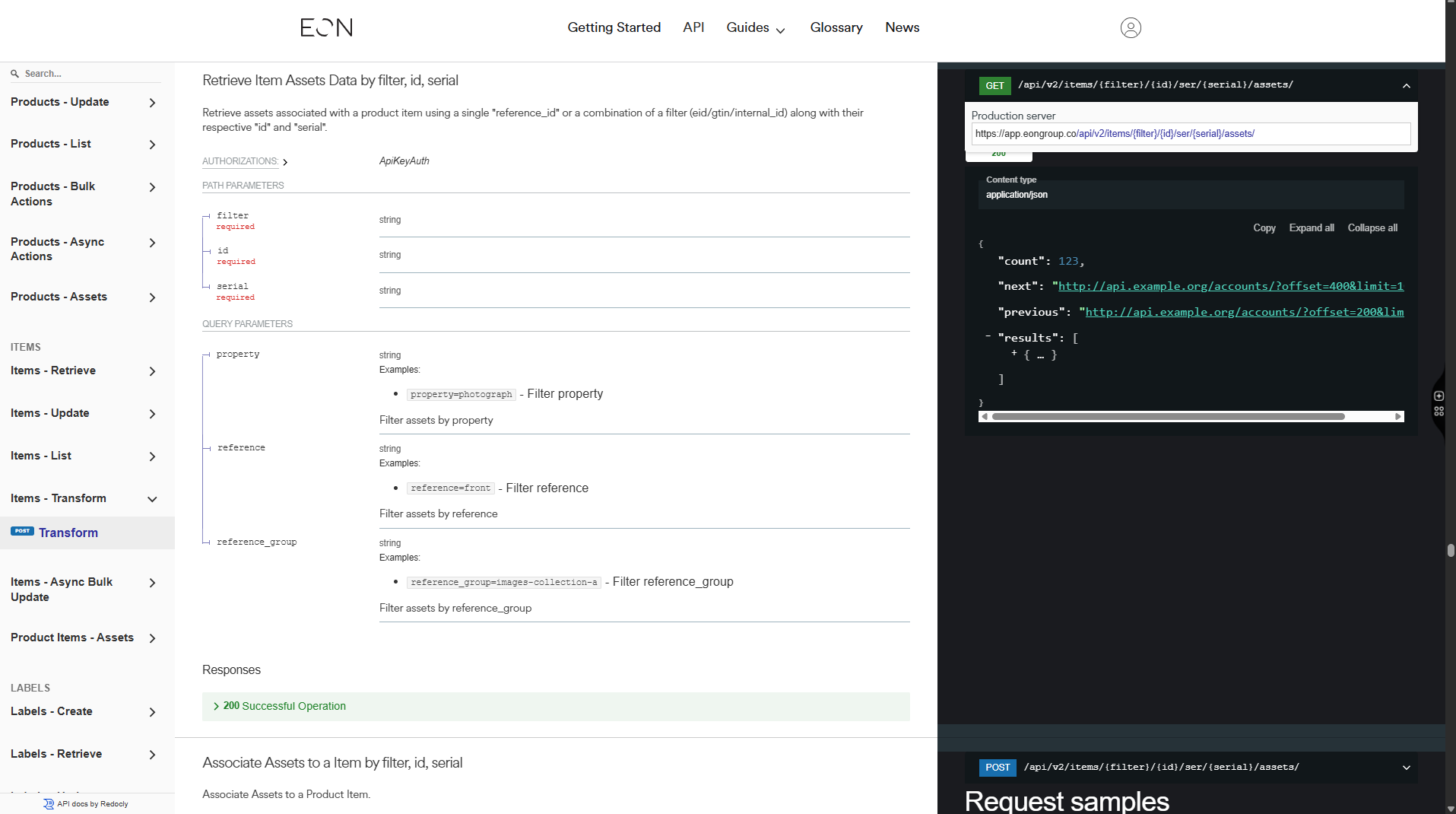
API & Integration
The Asset Manager is deeply embedded into each traceable object on the platform, including items, products, materials, and facilities. Because of this, Asset Manager functionality extends across multiple UI modules and API endpoints. Below are a subset of APIs that interact with the Asset object